

1
Set your privacy policy link
Open Portal Details and, under General, fill in Privacy policy link with the address of your agency’s published privacy policy, for example
https://youragency.com.au/privacy-policy. Click Save.Every privacy link in the portal goes to this page, including the one in the privacy notice your agents read to buyers before they collect ID. Leave it blank and the portal links to Kenekt’s privacy policy instead.2
Test with one agent (optional)
You can try the digital EOI with a single agent before every agent sees it. See Test with one agent below.
3
Turn on the digital EOI
In Portal Details, under Pages, switch on Digital EOI. It saves as soon as you flip it, and every agent on your portal now sees Start EOI on the property page.
4
Check the notifications
Open Deal Stages & Notifications and set who is emailed at each EOI milestone. See Notifications below.
Test with one agent
To try the digital EOI without turning it on for everyone, switch it on for one agent. Use your own agent profile, or a colleague’s who has agreed to test it.- Go to Team in the sidebar.
- Open the agent’s profile.
- Switch on Enable the Digital EOI for this agent. The badge changes from Off to Enabled.

Notifications
The digital EOI sends an email at three milestones. Each one is set on the Deal Stages & Notifications page. A green envelope next to a milestone means its email is on. Click the envelope to open its settings.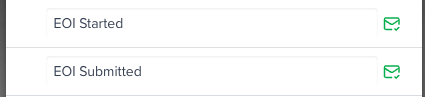

- Send this email (on EOI Accepted, Send email when deal enters this stage): turns the email on or off.
- Selling Agent: the agent who started the EOI.
- Package BDM or Agent Group Owner: the BDM on the package, or the owner of the agent’s group.
- Additional Staff: anyone else on your team who should get a blind copy (BCC).