

Before you start
Have on hand:- Each buyer’s legal name (exactly as on their ID), email, mobile, residential address and date of birth
- A clear photo of each buyer’s ID: driver licence front and back, or the passport photo page, sighted in person
- The solicitor’s and finance broker’s contact details
- Confirmed availability for the lot with your account manager
What your buyer needs to be told
You sight your buyer’s original ID and upload copies, so your buyer has to know what happens to it. The Start EOI screen carries a privacy notice in your agency’s name, before anything is entered: who is collecting it, why, who else receives it, where it is kept, and how to ask to see or correct it. Read it to your buyer there. Later, on the ID upload, you tick a confirmation that you gave them the notice and they agreed. A few things worth being able to answer:- We do not ask for the document number. Only the type of document, the images, and where and when you met.
- The ID copies and the EOI pack are stored in Australia. Links to them expire after a few minutes, so a forwarded link will not open.
- Every view or download by your account manager’s team is recorded, so there is a trail of who saw what.
- The ID stays with this EOI. It is never reused on another deal or shared with another agency.
Start from the property page
Open the property you are selling. The Start EOI button sits in the documents panel. If an EOI already exists for this lot, the same button shows View EOI instead, and a started EOI resumes where you left off.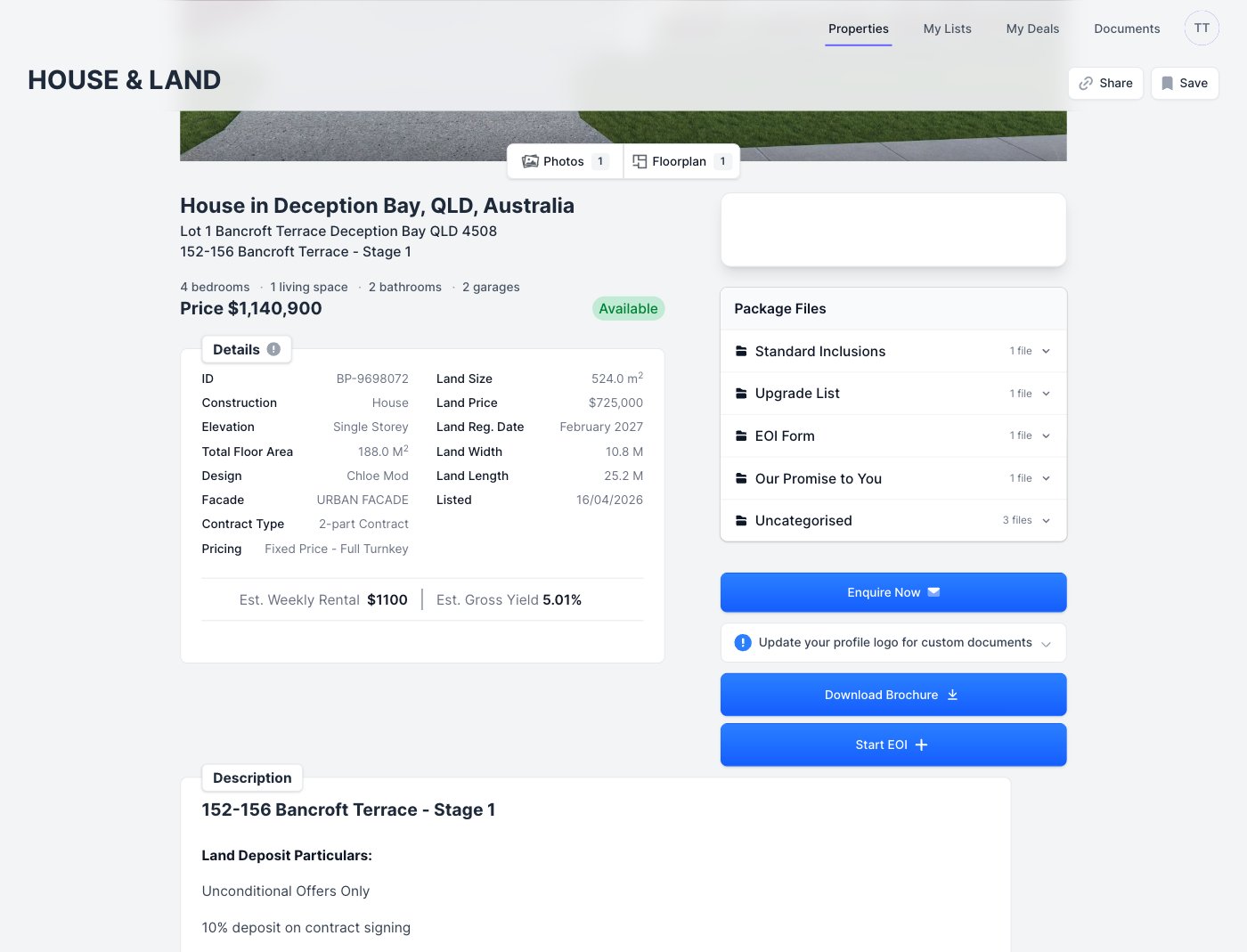
Accept the Digital EOI terms (first EOI only)
The very first time you start a digital EOI you accept the Digital EOI terms. Scroll the terms to the bottom to unlock the checkbox, tick it, then click Accept and continue. You won’t see this page again unless the terms change.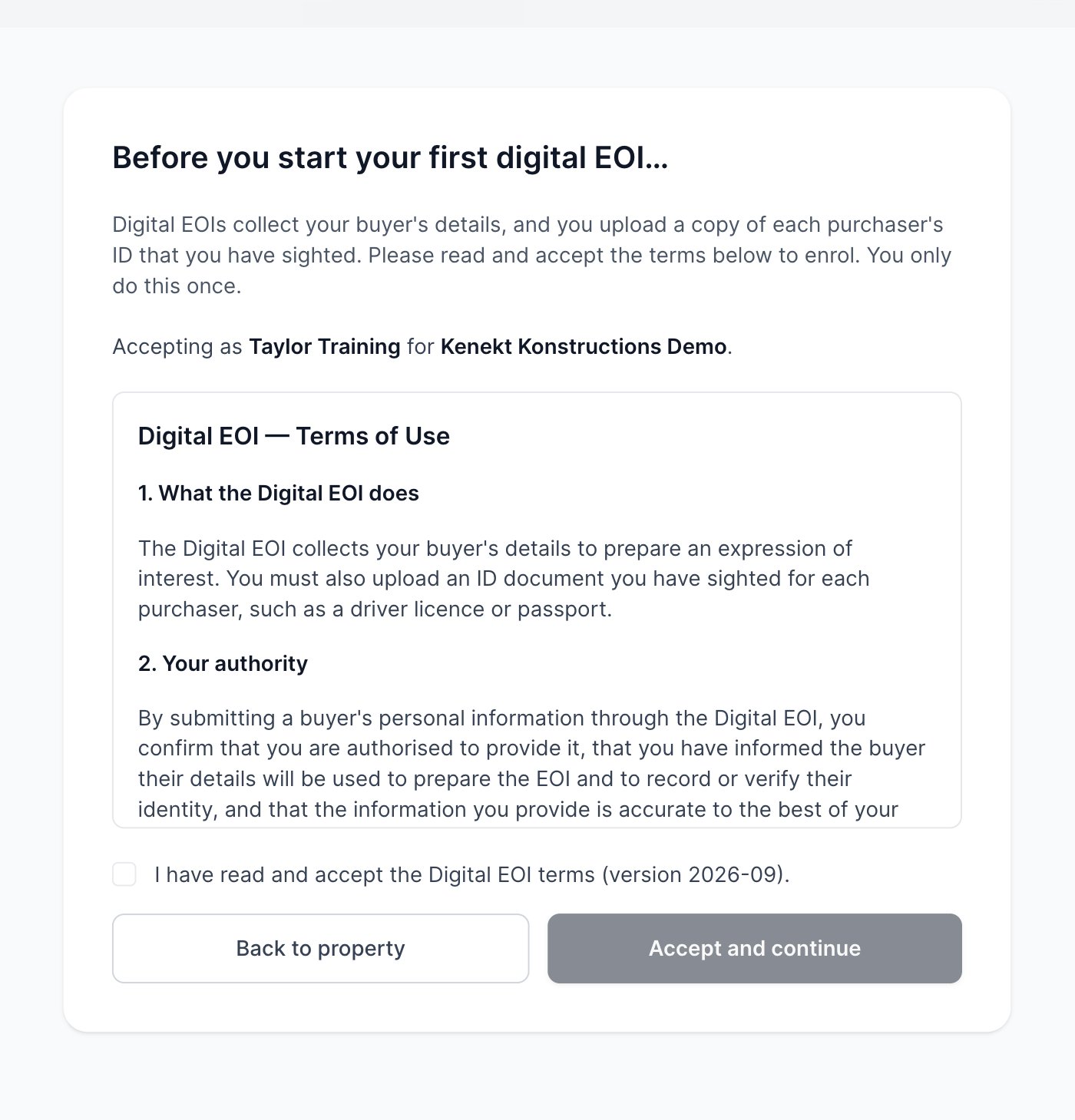
Confirm availability
Read your buyer the privacy notice on this screen, tick the availability confirmation, then click Start EOI. This creates the deal in your account manager’s pipeline, and records which version of the notice your buyer was given.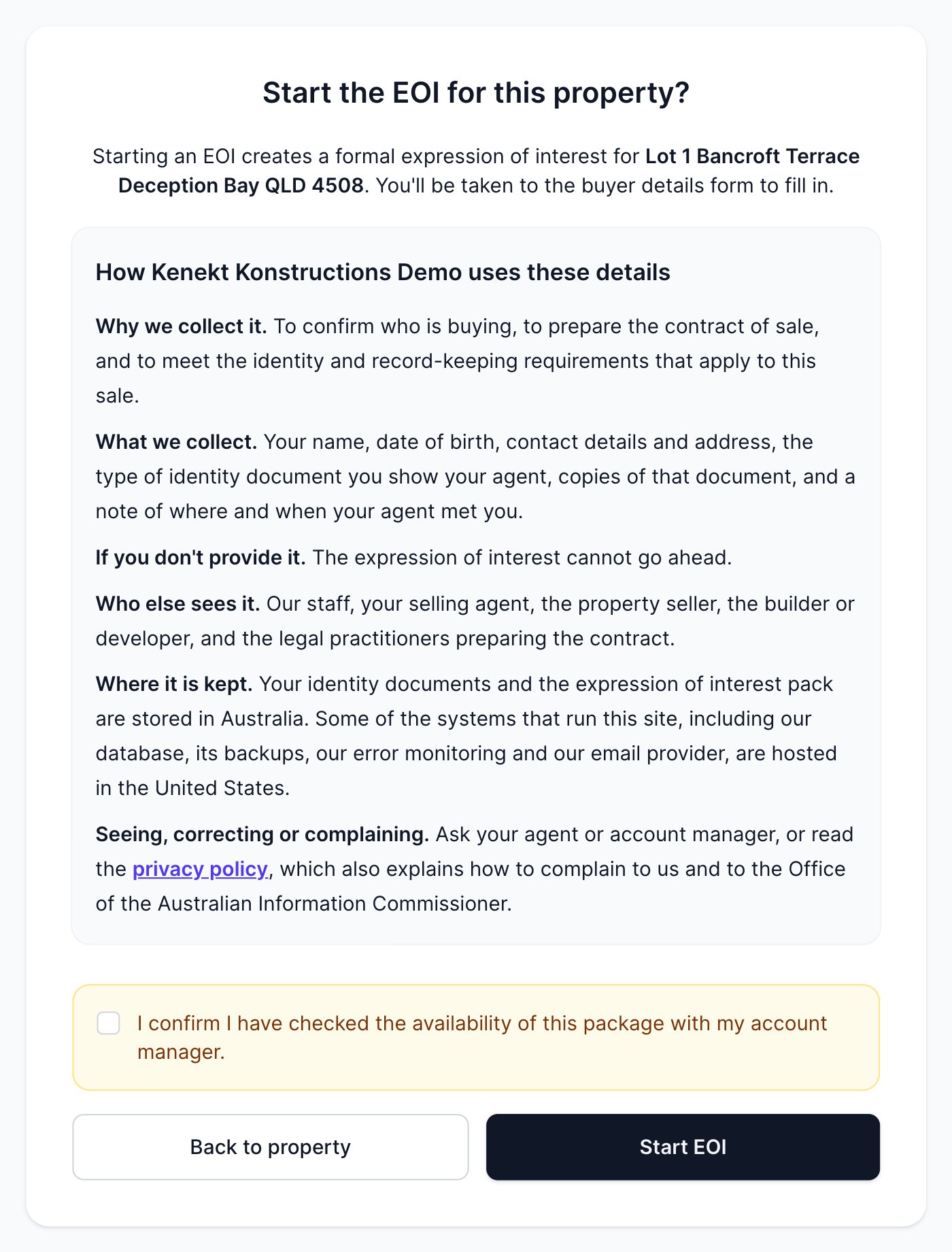
Choose how the purchaser is buying
Next, pick the purchase structure. The wizard adapts to it. As you move through it, the header always shows the step you are on, the step behind you and what comes next, and each screen asks for one thing.- Individual buyers: up to four individuals on one EOI
- Company: registration first, then the owners and directors
- Trust: the trustee, the trust, then the people behind it
- SMSF: the fund, its corporate trustee, then the members