Filter by status
The filters on the EOI tab are the EOI’s own statuses: All EOIs, Started, Submitted, Cancelled and Rejected. A started EOI is a draft you can resume; a submitted one is with your account manager’s team for review.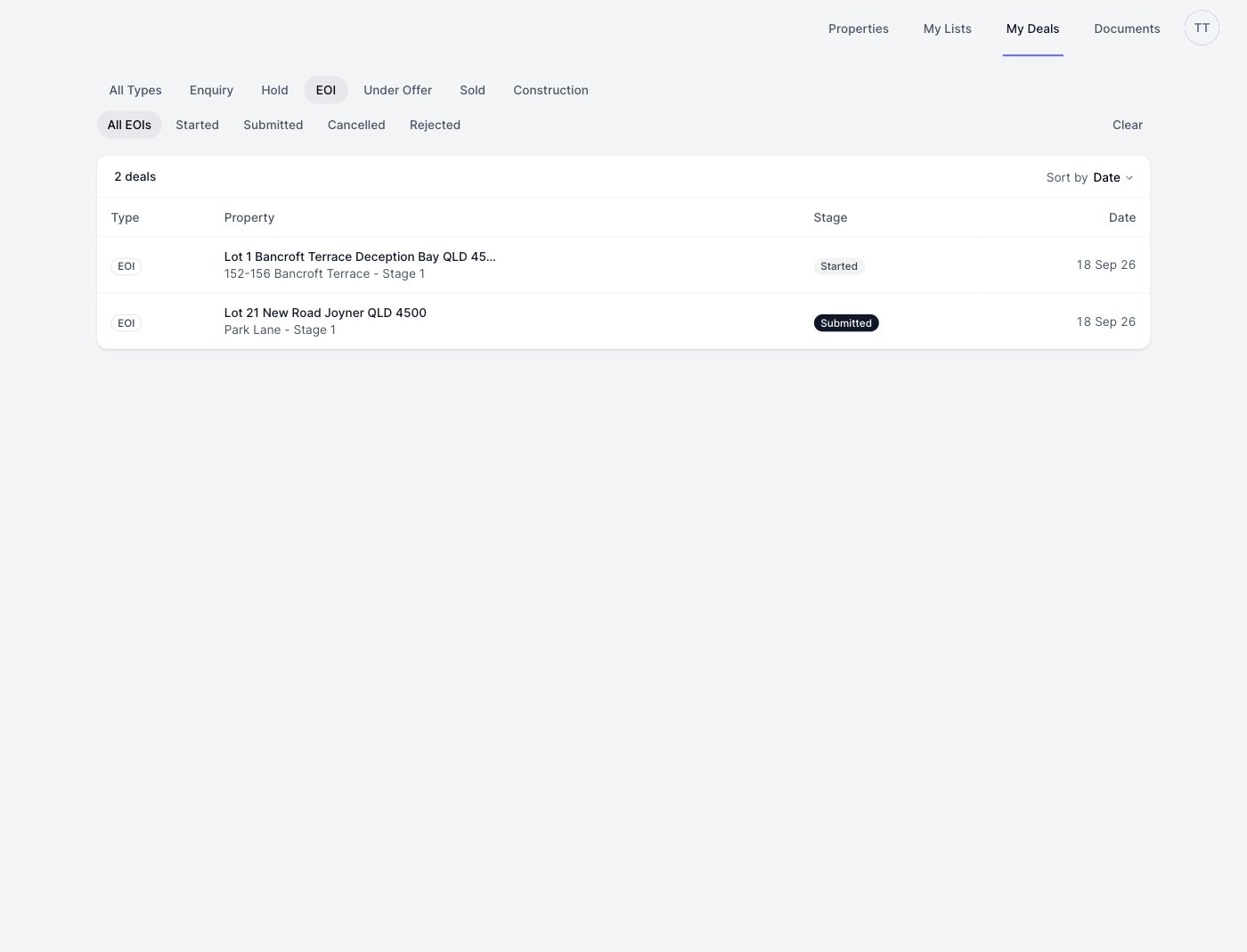
Resume a saved EOI
Click any row to open the deal drawer. For a started EOI the drawer shows the buyer you’ve entered so far, Resume EOI, which takes you straight back into the form where you left off, and Abandon EOI.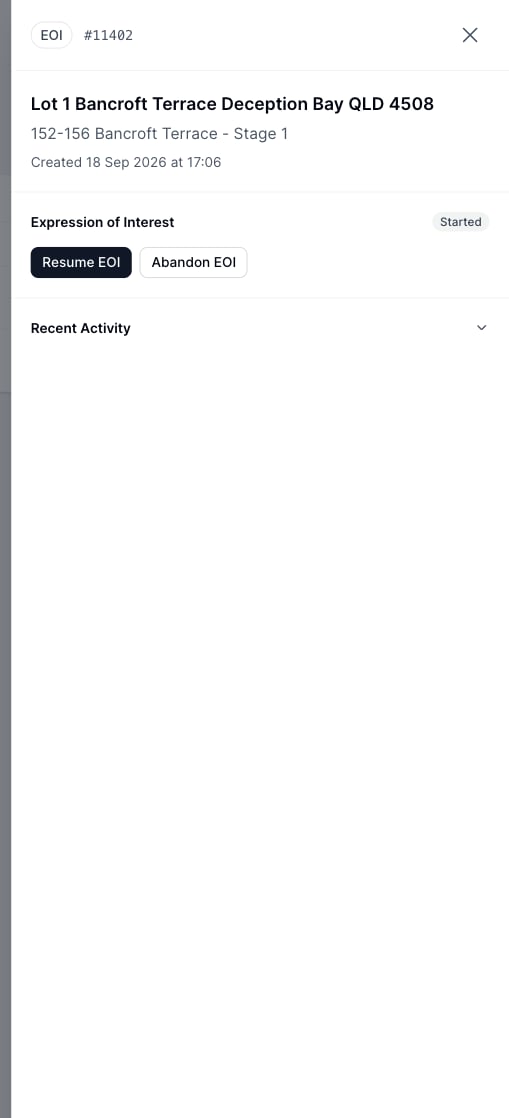
Download the Contract Pack
Once an EOI is submitted (and after it’s accepted), the drawer offers Download EOI Pack: the Expression of Interest Pack with the EOI details and the collected IDs, ready to send on. It sits next to View EOI, which opens the full read-only record.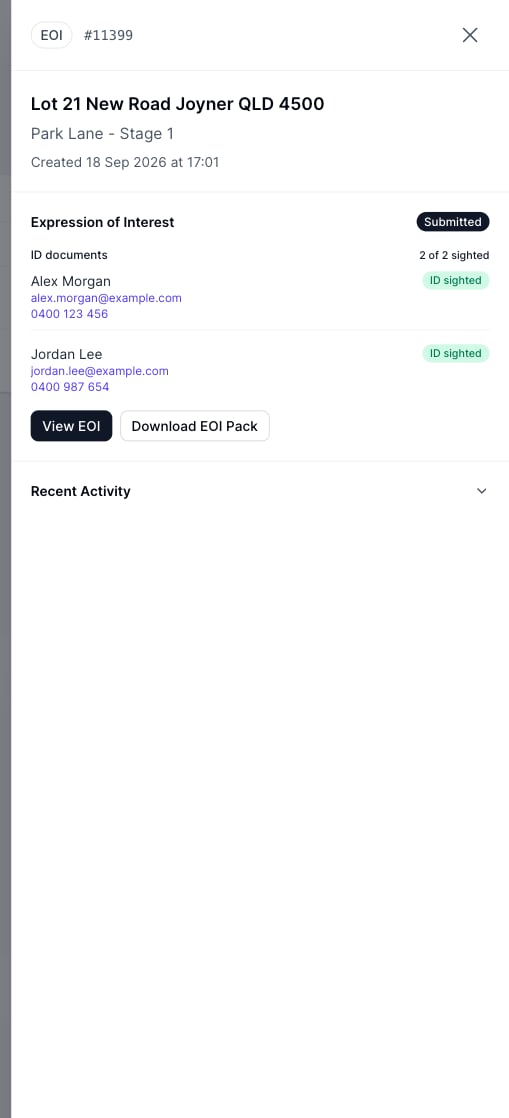
Close an EOI
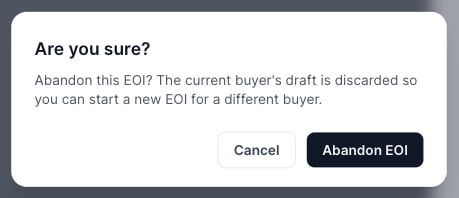
If the buyer falls through or you started with the wrong purchaser, choose Abandon EOI in the drawer (or Abandon & start a new EOI on the property page). You’ll be asked to confirm: