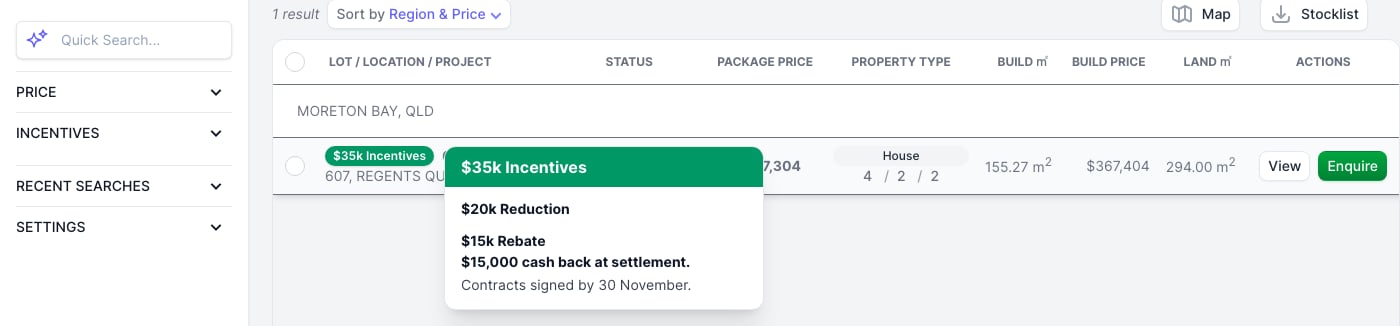
- Reduction: a price cut on the package.
- Upgrade: an upgrade bonus, such as a free kitchen or flooring pack.
- Rebate: cash back to the buyer.
Adding an incentive
1
Open the package
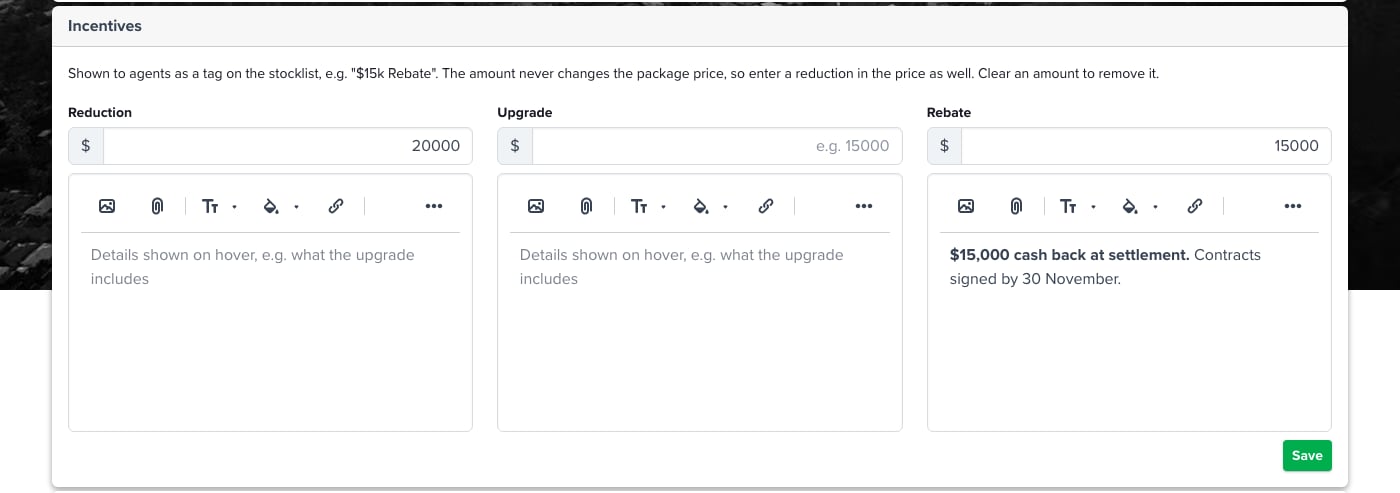
Go to the package and open its Details tab. On a single-page package form, the Incentives card sits after Marketing.
2
Enter the amount
Type the dollar amount under Reduction, Upgrade or Rebate. Whole dollars only, for example
15000.3
Add the details (optional)
The box under each amount is shown to agents when they hover over the tag. Use it for what the upgrade includes, the conditions of the rebate or a closing date. It takes formatted text and images.
4
Save
Click Save on the card. The tag appears on the package straight away.
What agents see
In the portal property table, a package with an incentive shows a tag before its location. A package with one incentive shows that incentive, such as 35k Incentives, so every row stays the same height. Hovering over the tag opens a card listing each incentive and its details.