

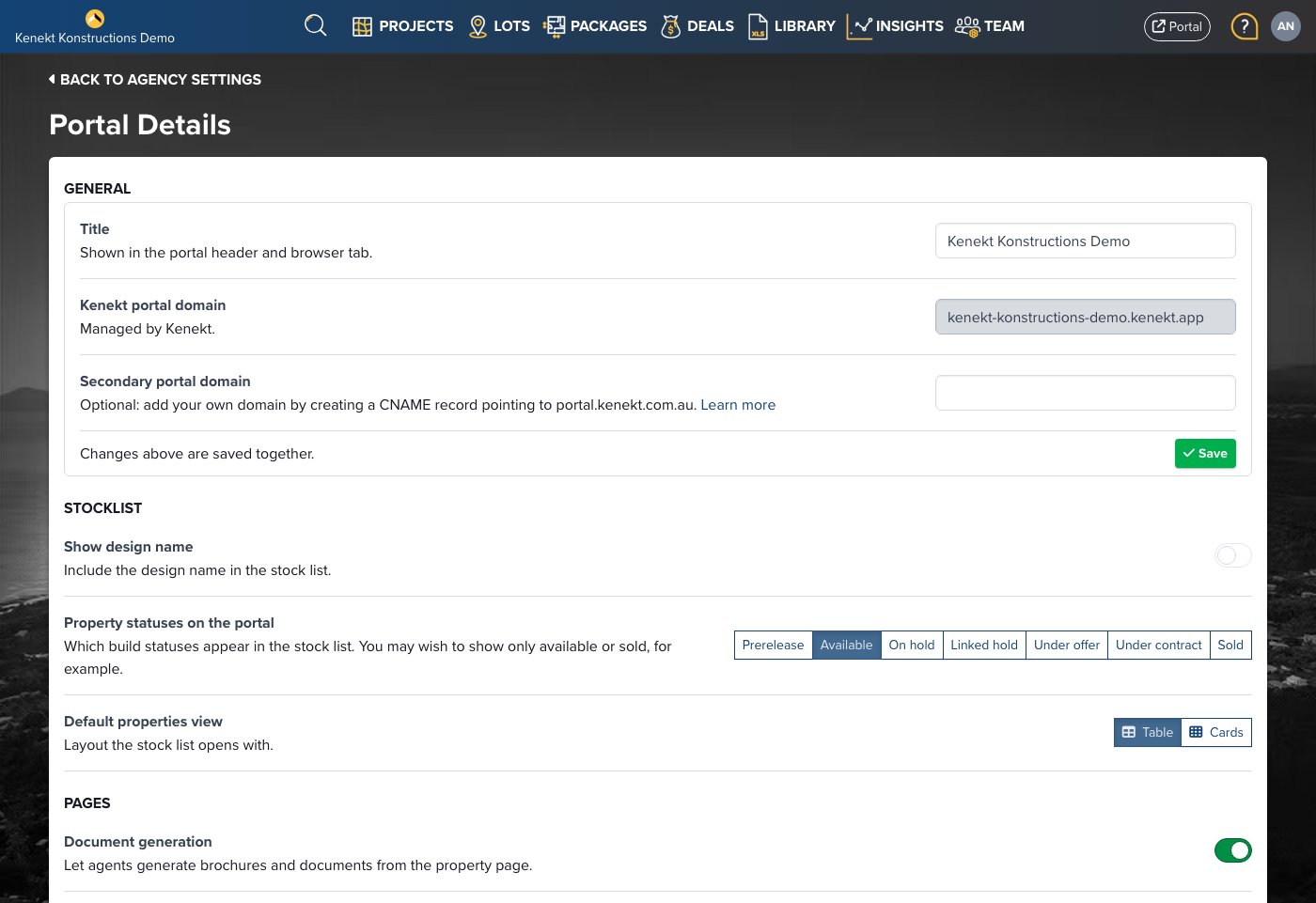
Portal Domain
Kenekt Portal Domain Name
Your default portal URL (e.g.,demoagency.kenekt.app). This is automatically created when your agency is set up.
Linking a Custom Subdomain
You can link your portal to a custom subdomain likeportal.yourcompany.com.au or properties.yourcompany.com.au.
Setup Steps
-
Choose a subdomain prefix. Common options:
portal.yourcompany.com.auagents.yourcompany.com.auproperties.yourcompany.com.auprojects.yourcompany.com.au
-
Create a CNAME record in your domain registrar:
- Type: CNAME
- Name: Your chosen prefix (e.g.,
portal) - Target:
portal.kenekt.com.au
- Email support at team@kenekt.com.au with your domain details to finalise the connection
- Wait for propagation: It can take up to 12-24 hours before the domain is available
Secondary Portal Domain Name
Enter your custom domain here once your CNAME record is set up.Portal settings
Below the domain fields, Portal Details is a list of settings grouped under headings. Each row names the setting, explains it, and puts the control on the right. Switches save the moment you flip them. Groups that need typing, such as the domain fields and Stocklist access, sit in a bordered box with their own Save button.Stocklist
- Show design name: Include the floor plan name in the stock list.
- Property statuses on the portal: Choose which statuses appear. Prerelease, Available, On Hold, Linked Hold, Under Offer, Under Contract, Sold.
- Default properties view: Open the stock list as a table or as cards.
Pages
- Document generation: Let agents generate brochures and documents from the property page.
- Single-step PDF creation: Brochure and merge in one click.
- Package files: Let agents browse a package’s documents by category.
- Articles: Show the Articles page in the portal navigation.
- Custom home page: Show a curated landing page instead of the stock list. The stock list stays at
/properties. - General Enquiry form: Add a General Enquiry link to the portal navigation so agents can send you a property sourcing brief. See Enquiries for what the brief asks. Briefs go to the agent’s group owner, or to the agency owner when the agent is not in a group. This switch is off until you turn it on, and it only appears for supplier agencies. Marketplace portals always have the form.
- Open sourcing link: Publish a
/enquirelink where agents without a login can send a sourcing brief. Requires an agency owner. See Sourcing Requests. - Digital EOI: Replace the PDF download on the property page with the digital EOI workflow.
- Magic link login: Let agents sign in with an emailed link or 6-digit code instead of a password. See Signing in.
- Property packs on public share pages: Show property packs on public share links.
Website widget
The Website widget row shows whether public property pages are on and opens a Configure page with the switch, your colours, the API key picker, and the embed code for your own website. Colour changes need Save; the switch saves on its own.Public stocklists
Opens the public stocklist manager. See Public Stocklists. Administrators only, and not available on marketplace portals.Stocklist access
Supplier agencies can let agents request access to the stocklist at/join. Turn it on, enter the email address that receives requests, and optionally upload a portrait image for the sign-up wizard, then click Save.