

Who is on the deal
The card at the top of the deal names the people involved: when the deal was created, the Package owner (the account manager for the package), the Sales agent who lodged the EOI, and the Agent account manager (the account manager who looks after that agent). The two managers are often the same person; when they differ, both get the deal’s emails.
The Expression of Interest panel
The panel opens with the status and a readiness strip: how many IDs are on file out of those required, the initial deposit with its receipt download, the solicitor, and the inclusion upgrades document if the agent attached one. Under it sit the actions, then the full record: each purchaser with their ID status, View IDs to see the documents on screen and Download ID for a copy, followed by purchase details, finance, ownership and advisors. Every view or download of an ID is recorded on the deal’s audit trail.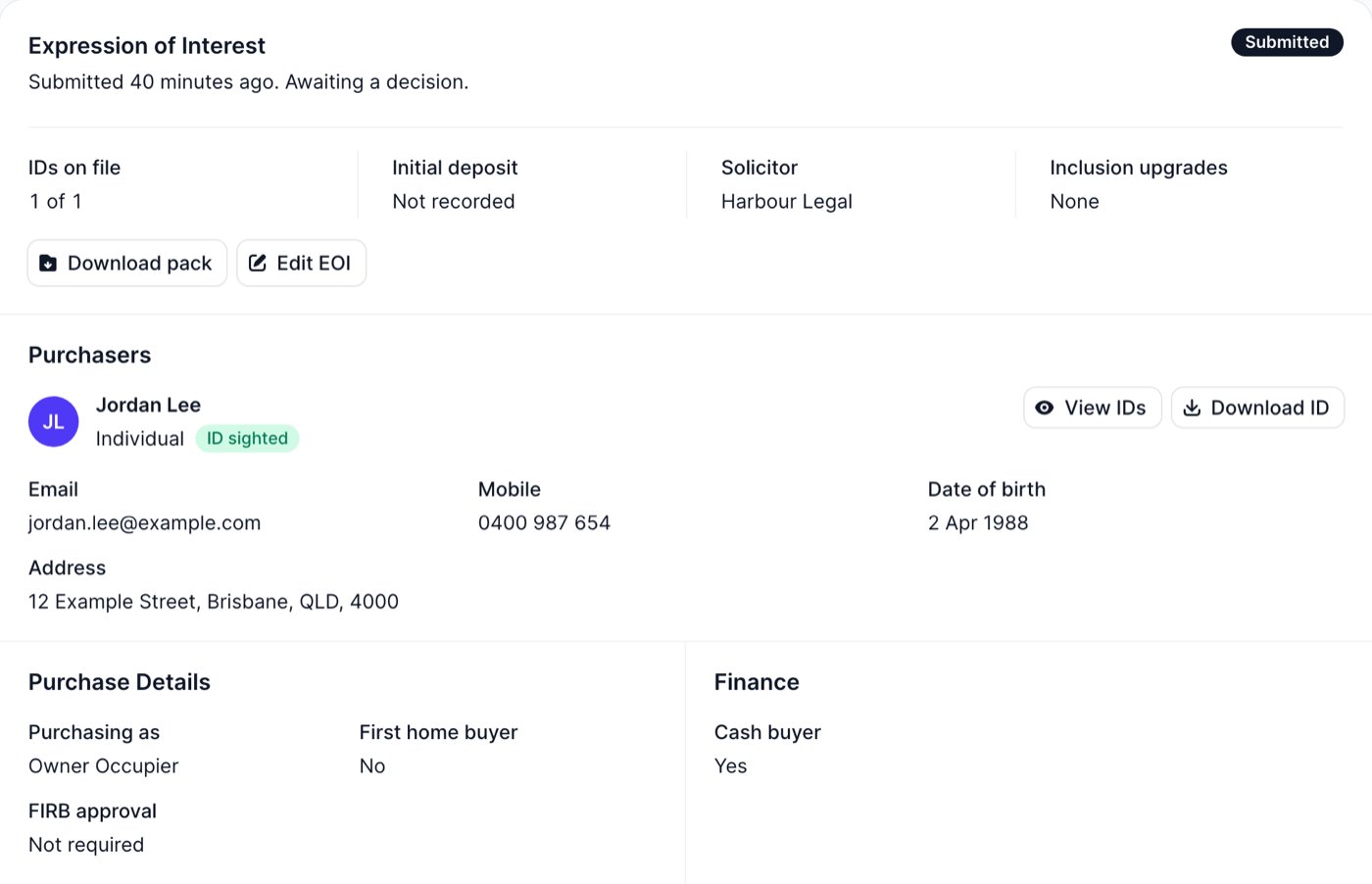
- Purchaser names match the uploaded documents
- Dates of birth entered from the sighted ID
- Licence front and back, or the passport photo page, attached
- All corners visible and readable, no glare, current expiry
- The agent’s where-and-when-met note filled in
Document numbers are no longer collected. The record holds the type of document, the images, the date of birth, and the agent’s account of the sighting. Identity checks themselves happen in your AML system, not in Kenekt.
The Expression of Interest Pack
Download pack produces one PDF with the full EOI record and the ID documents, ready for your file and your legal team. It stays available after acceptance, when the pack goes to the builder with the contract.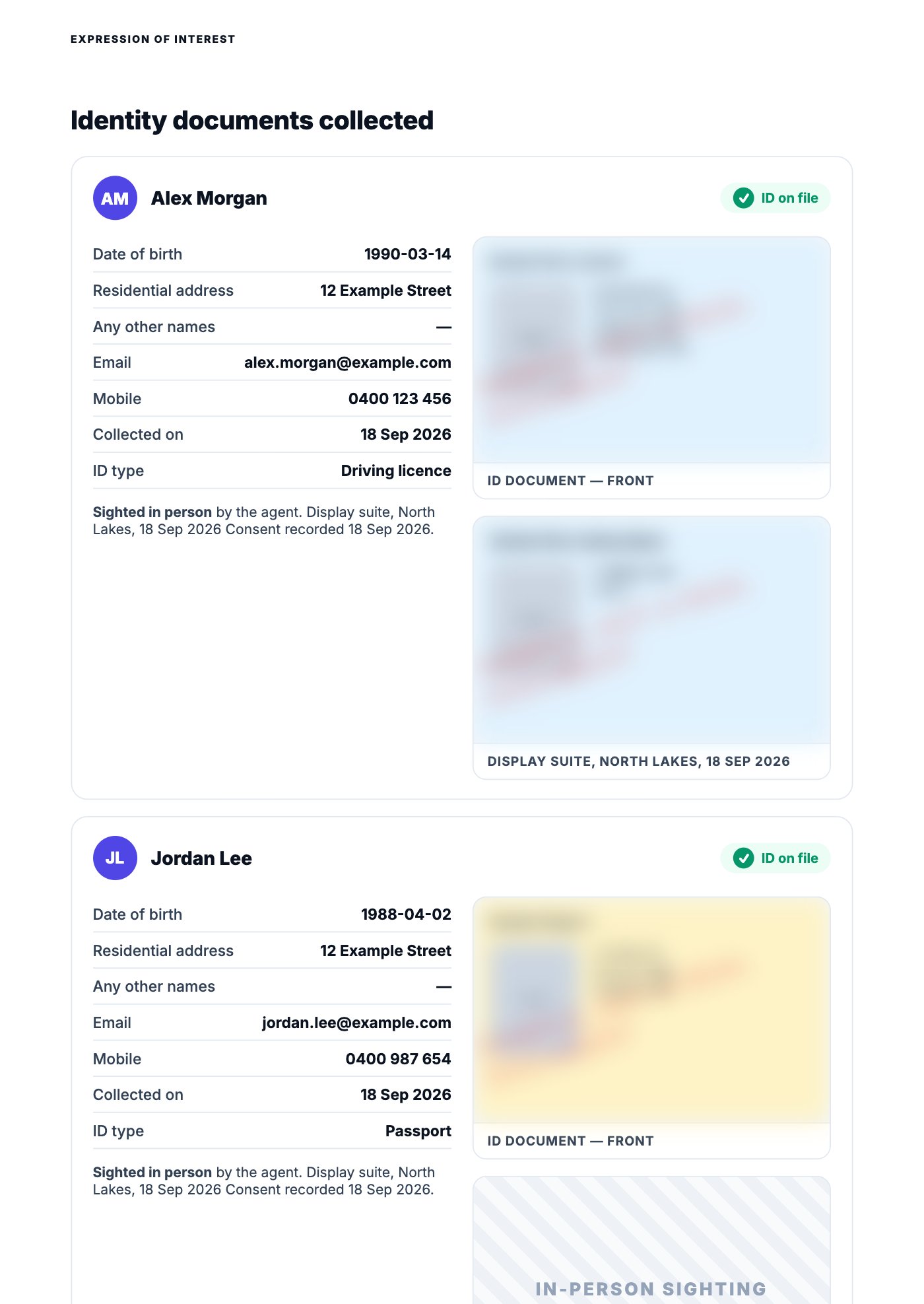
Accept or reject
- Accept EOI asks you to confirm, then marks the package Under Offer, archives competing packages on the lot, and emails the agent and account manager automatically.
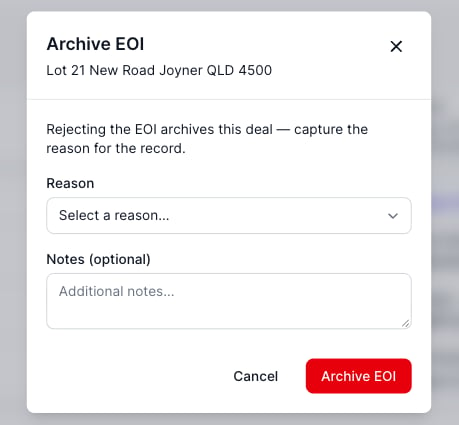
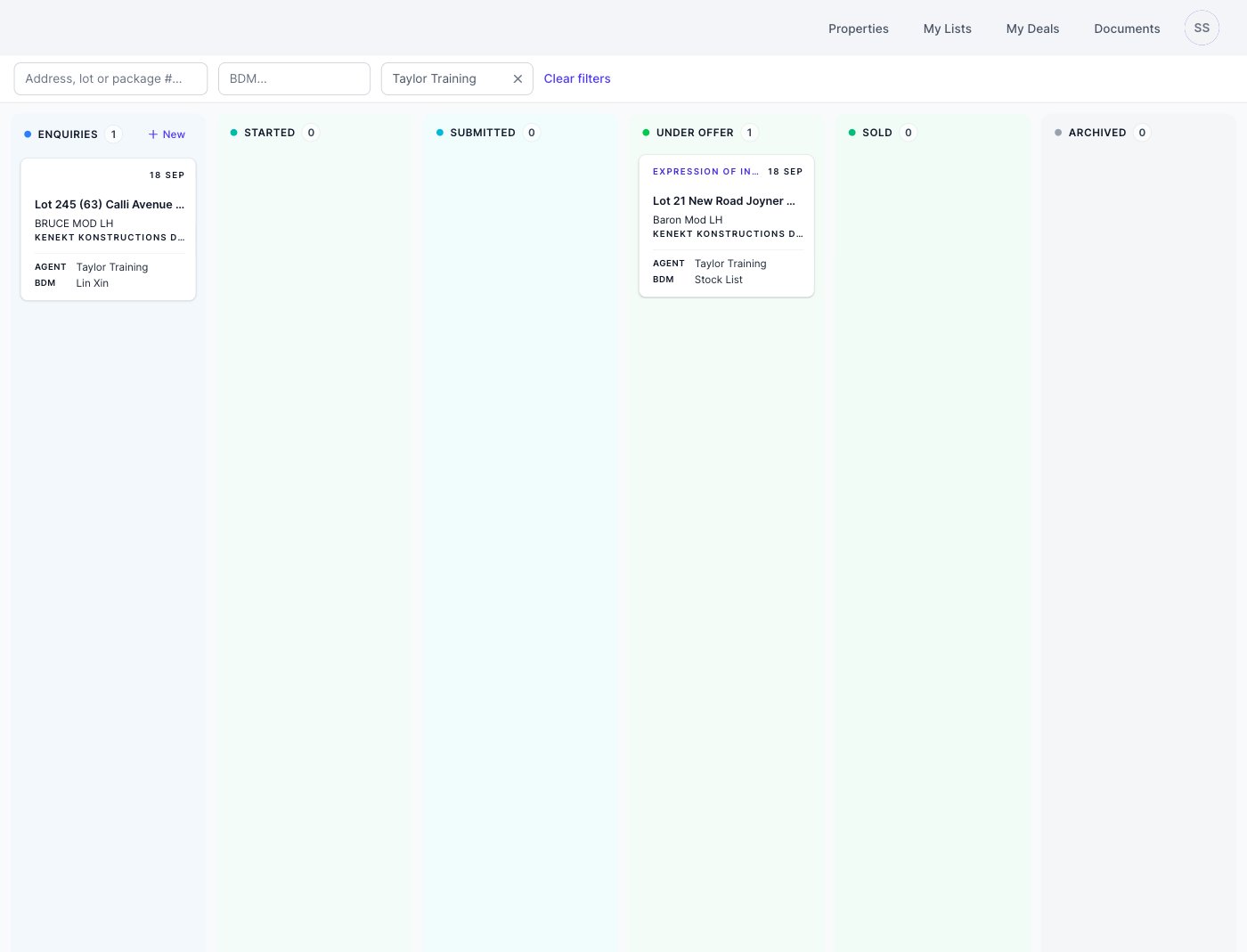
- Archive EOI asks for the reason (buyer withdrew, finance declined, and so on) and archives the deal with it. No email is sent: the agent sees the outcome on the board and in My Deals. An archived EOI can be restored: it returns to Submitted and the deal is un-archived.
Push to AML Partners appears on the panel for Kenekt’s own team only, as the reporting entity. Your team does not see it.
The emails the portal sends
Each milestone emails the sales agent and the account manager automatically at EOI started, EOI submitted and accepted, so your team never writes a status email. Each of the three can be switched off, and its recipients changed, on the stage settings in Kenekt. Rejecting an EOI sends no email: record the reason when you reject, and the agent sees the outcome on the board and in My Deals.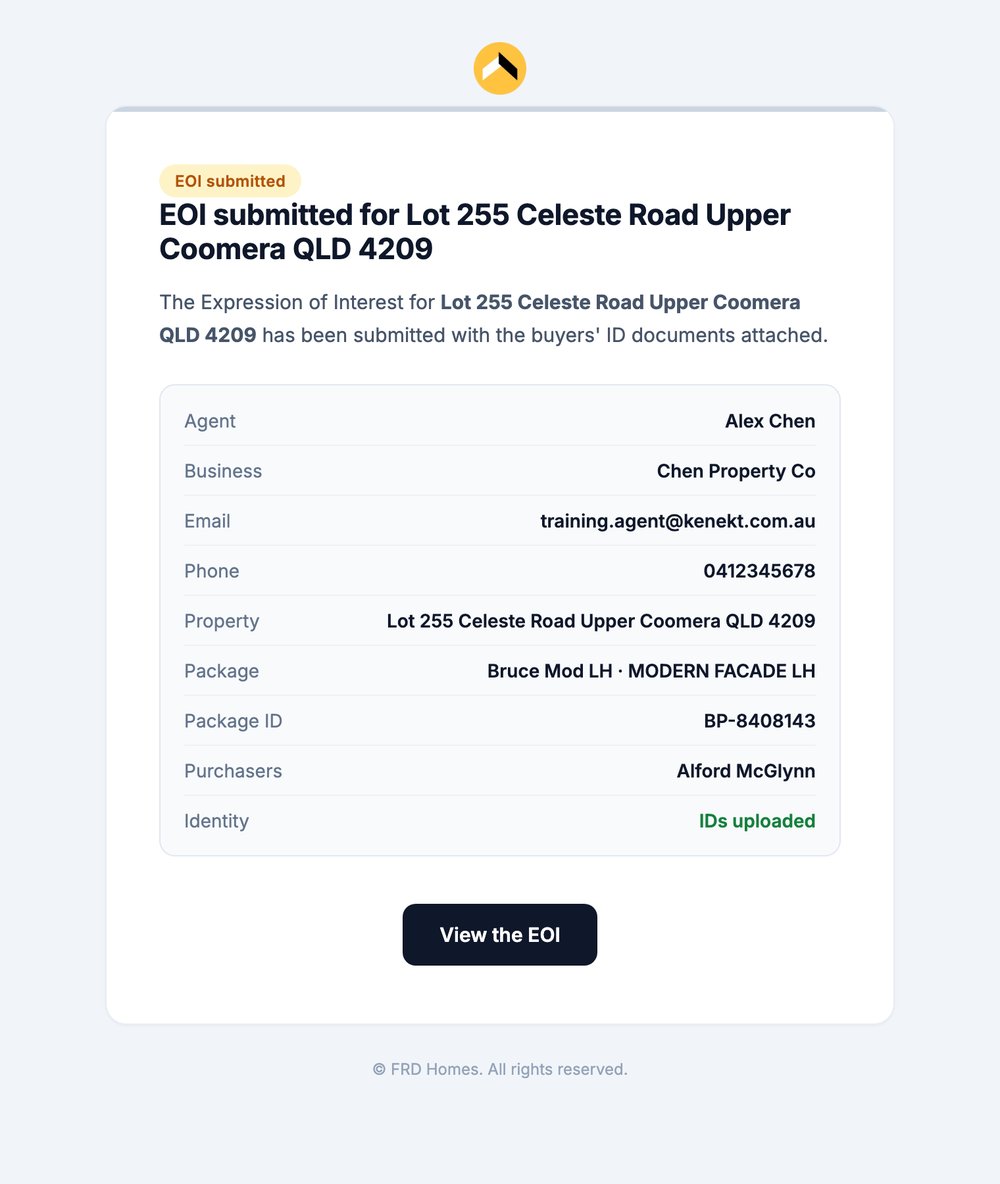
EOI submitted: the review request to your team
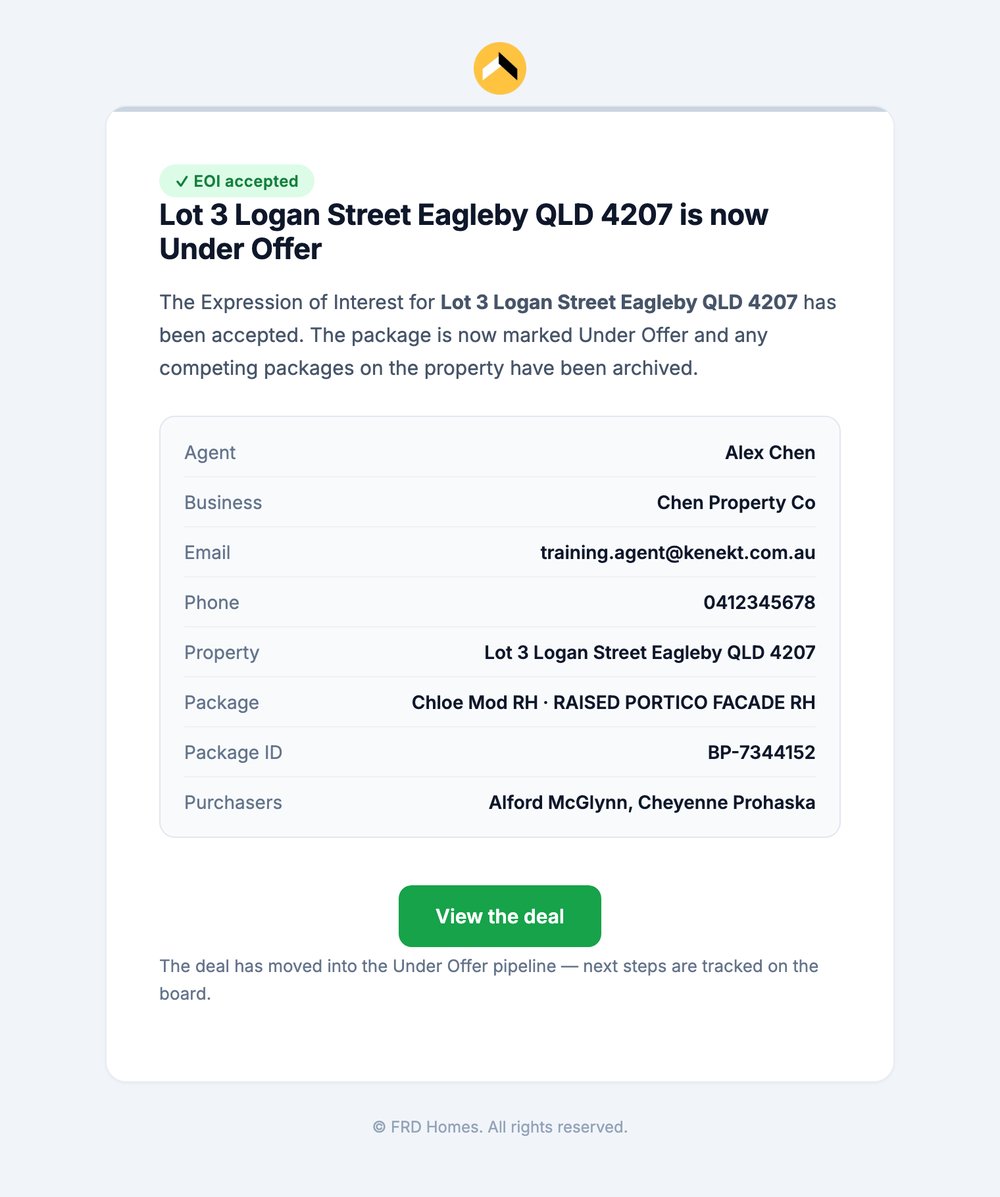
EOI accepted: sent when the deal moves to Under Offer