

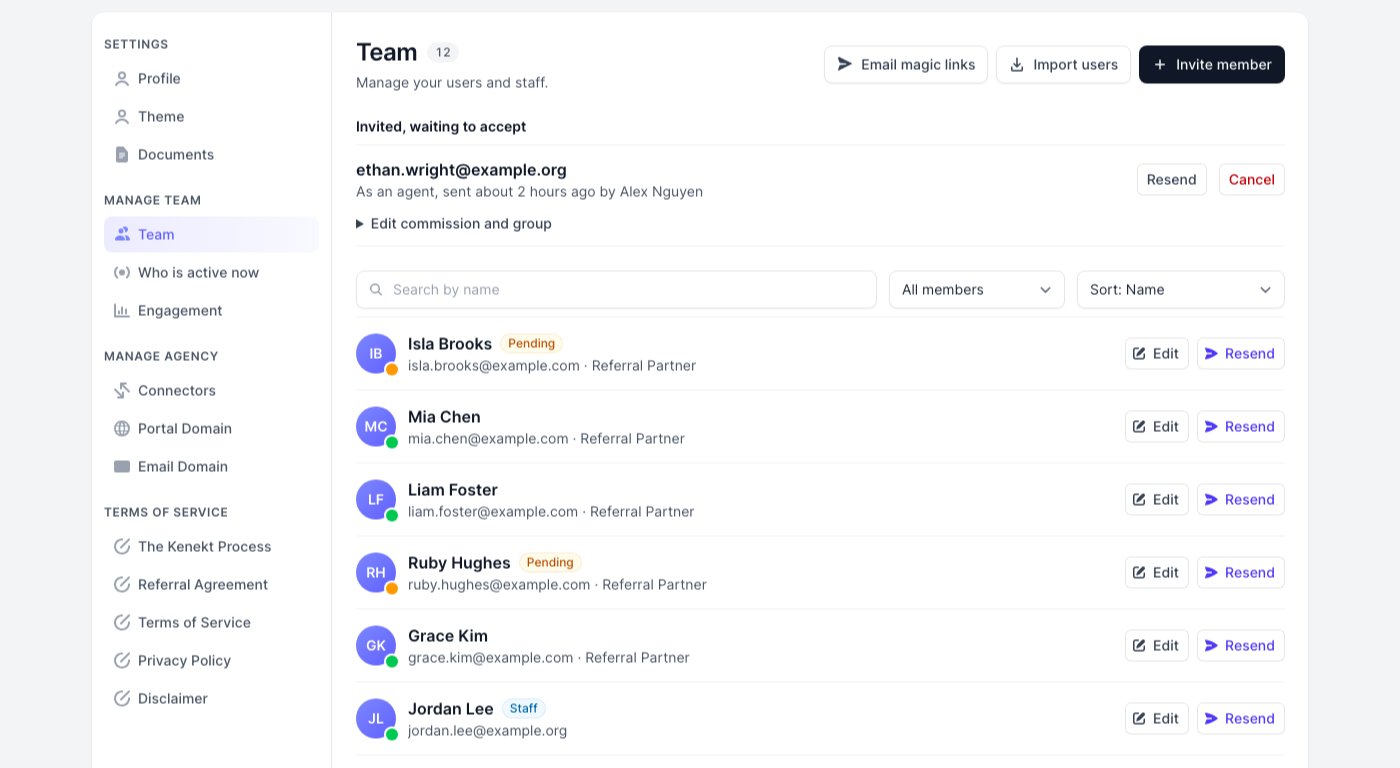
The Team page
Who can invite whom
Staff never see a role choice: everyone they invite joins as a referral partner.
Invite one referrer
1
Click Invite member
On the Team page, click Invite member at the top right.
2
Enter their details
First name, last name and email address are required. A phone number is optional.
3
Choose the role (admins only)
Leave Referral Partner selected for a referrer.
4
Choose a user group (if you use groups)
The User group field appears when your agency has at least one group, and controls which stock the referrer can see. See User Groups.
5
Click Send invite
The referrer is emailed straight away.
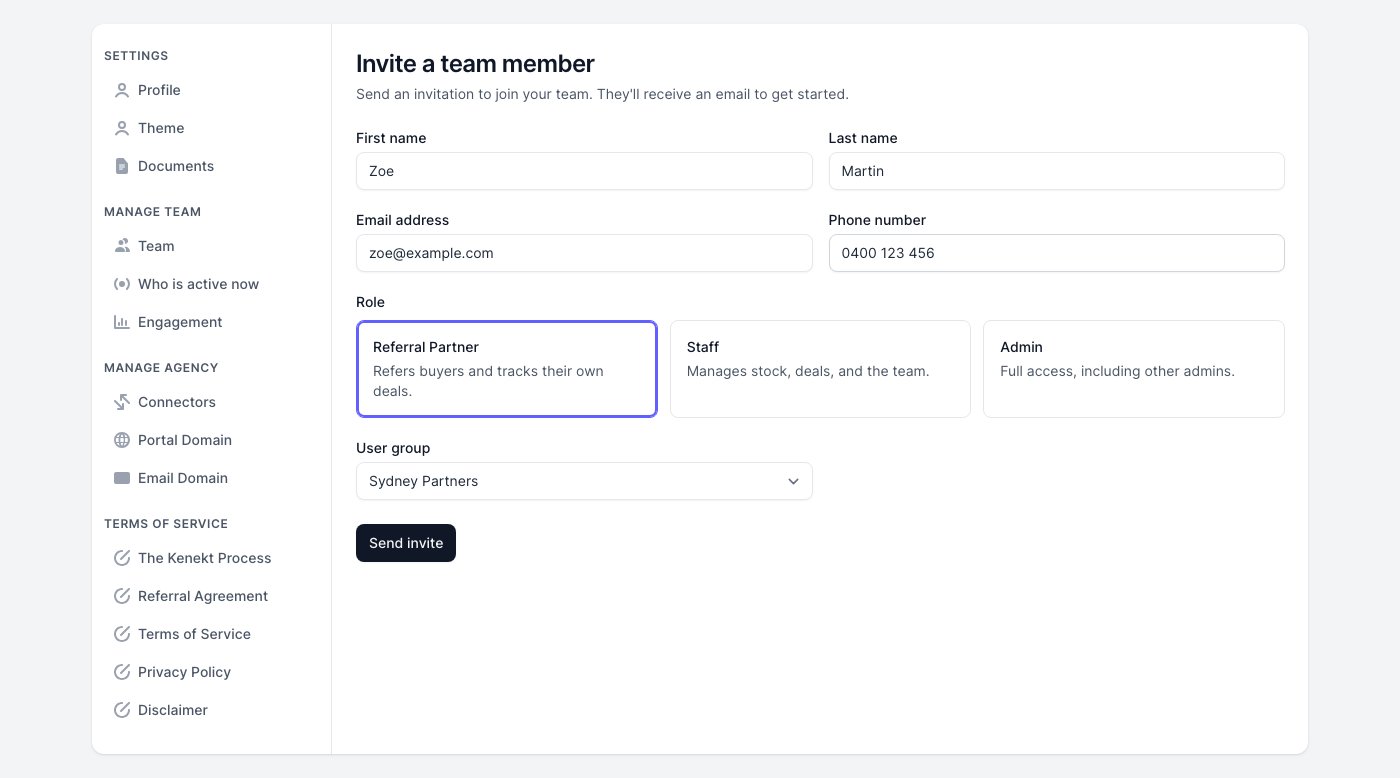
Inviting a referrer into the Sydney Partners group
- Email sign-in portals: the referrer gets a sign-in link that works for 7 days. Clicking it takes them straight into your portal, with no password to set.
- Password portals: the referrer gets an activation email and sets a password.
When they already have a Kenekt account
One Kenekt login works on every portal a person belongs to, so nobody joins your team without agreeing to it. If the email you enter already has a Kenekt account, Kenekt sends them an invitation instead of a new account. Until they click Join, they are not on your team. Their invitation shows under Invited, waiting to accept at the top of the Team page, with who sent it and when. From there you can:- Resend the invitation
- Cancel it
- Edit commission and group, to change the group they join with
Invite referrers in bulk
To bring across a whole referrer network, import them from a spreadsheet.1
Download the template
On the Team page, click Import users, then Download template.
2
Fill in one row per referrer
The template has five columns: First Name, Last Name, Email, Company and Mobile. Delete the two grey example rows.
3
Upload it
Choose the file (Excel, up to 25MB) and click Upload & import. We email you when the import is done.
4
Check the log
Past imports lists each upload with its rows, how many were added (OK), how many already had an account and were sent an invitation (Invited), and any Errors. Click View log to see each row.
5
Send the invitations
See below.
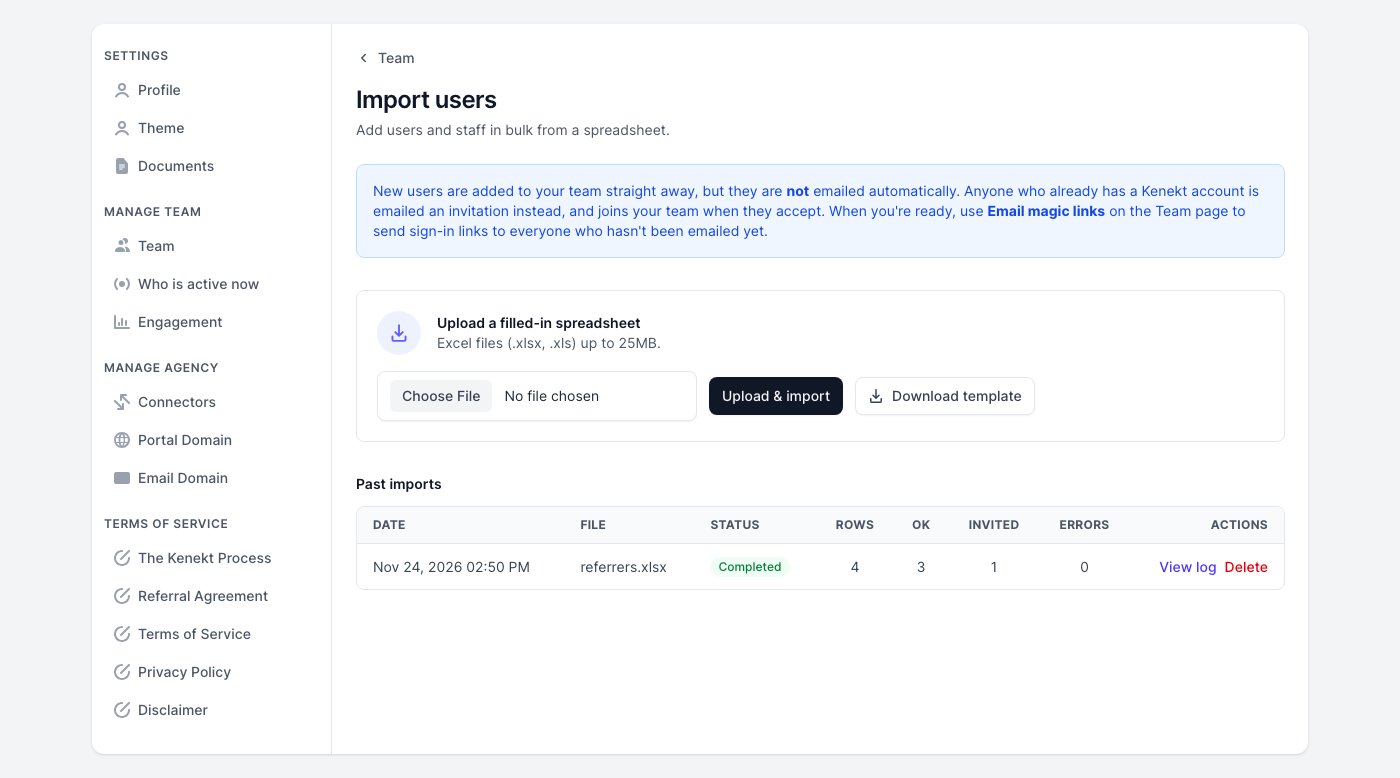
An import of four referrers: three added, one invited because they already had an account
- Email sign-in portals: an admin clicks Email magic links on the Team page. Every referrer who has never been emailed gets their sign-in link. Anyone already emailed is skipped, so you can click it again after a later import.
- Password portals: click Resend on each new referrer’s row.
Following up
The Team page lists everyone on your team, except you. Each person shows a status:
Referrers show Referral Partner next to their email. Use the search box to find someone by name, the status filter to see only Pending referrers, and Sort: Recent activity to see who is using the portal.
Click Resend on a row to send someone a way in:
- A pending referrer gets an activation email.
- An active referrer gets a fresh sign-in link that works for 7 days, which helps someone who has lost your portal’s address.
Changing a referrer’s details
Click Edit on their row to:- Change their name, mobile and business name. Their email can’t be changed here.
- Move them to a different user group, or to No group.
- Change their role (admins only), for example to promote a referrer to staff.
- Disable access, which stops them signing in and releases any stock they hold. It’s reversible: Enable access restores them.
- Remove from team, which can’t be undone.
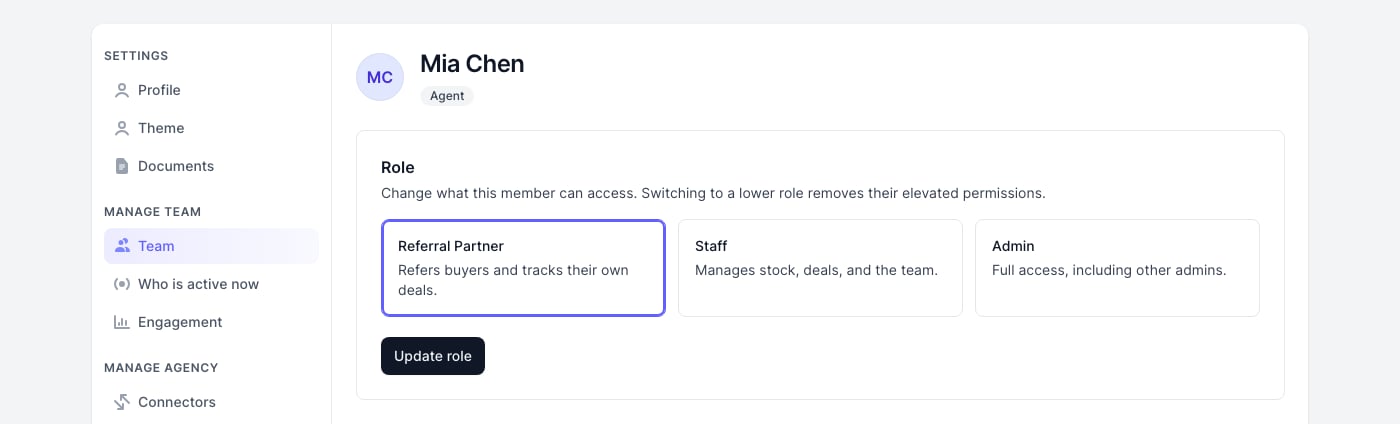
Changing a referrer's role (admins only)