> ## Documentation Index
> Fetch the complete documentation index at: https://help.kenekt.app/llms.txt
> Use this file to discover all available pages before exploring further.
# Find Saved EOIs
> Every EOI lives in My Deals: filter by status, resume a draft, download the Contract Pack from the deal drawer, or close an EOI you no longer need.
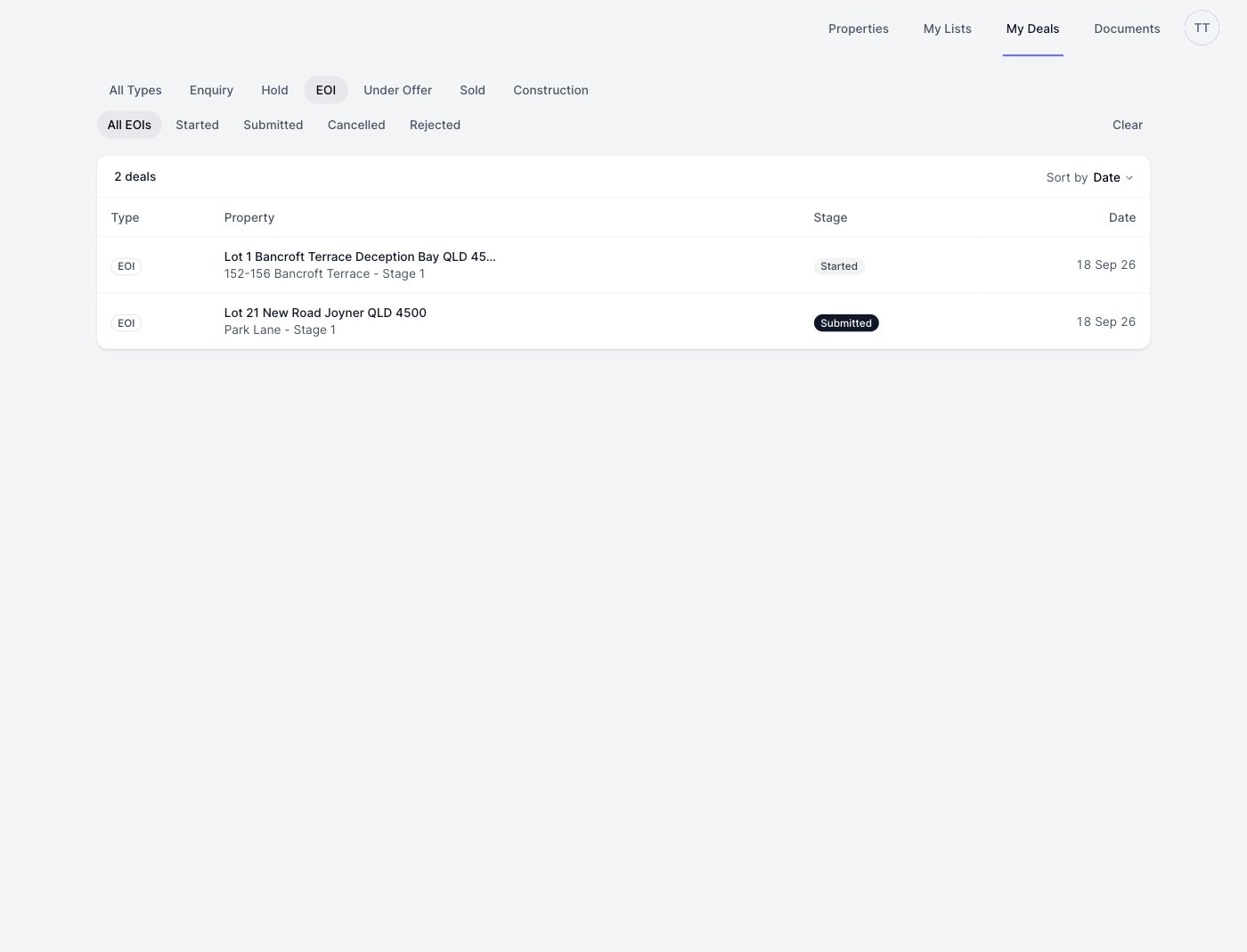
Every EOI you start is saved as you go, so nothing is lost if you leave partway through. **My Deals** is where you find them all: open **My Deals** from the top navigation and choose the **EOI** tab.
## Filter by status
The filters on the EOI tab are the EOI's own statuses: **All EOIs**, **Started**, **Submitted**, **Cancelled** and **Rejected**. A started EOI is a draft you can resume; a submitted one is with your account manager's team for review.
 ## Resume a saved EOI
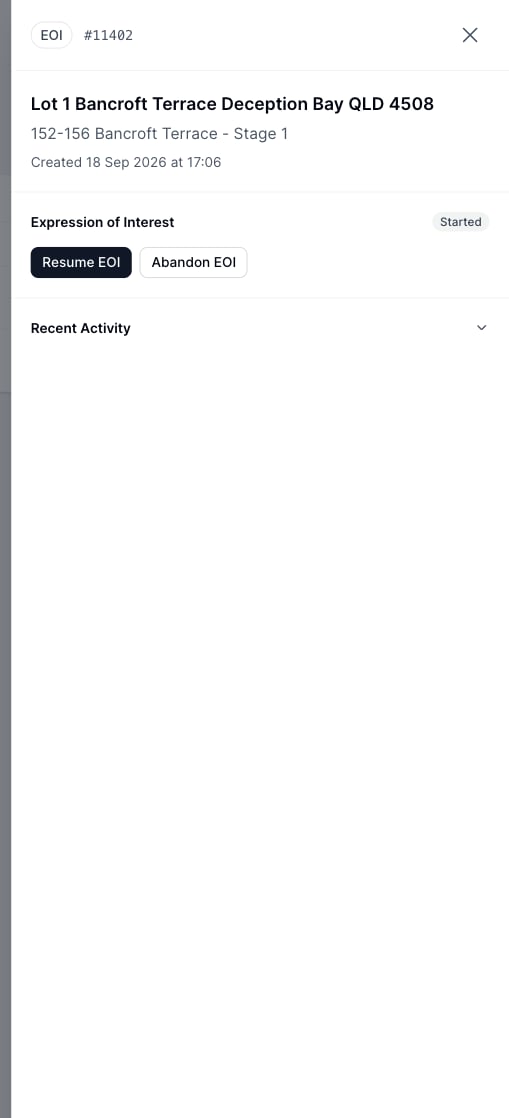
Click any row to open the deal drawer. For a started EOI the drawer shows the buyer you've entered so far, **Resume EOI**, which takes you straight back into the form where you left off, and **Abandon EOI**.
## Resume a saved EOI
Click any row to open the deal drawer. For a started EOI the drawer shows the buyer you've entered so far, **Resume EOI**, which takes you straight back into the form where you left off, and **Abandon EOI**.
 You can also resume from the property page itself: once an EOI exists for a property, its **Start EOI** button becomes **View EOI**.
## Download the Contract Pack
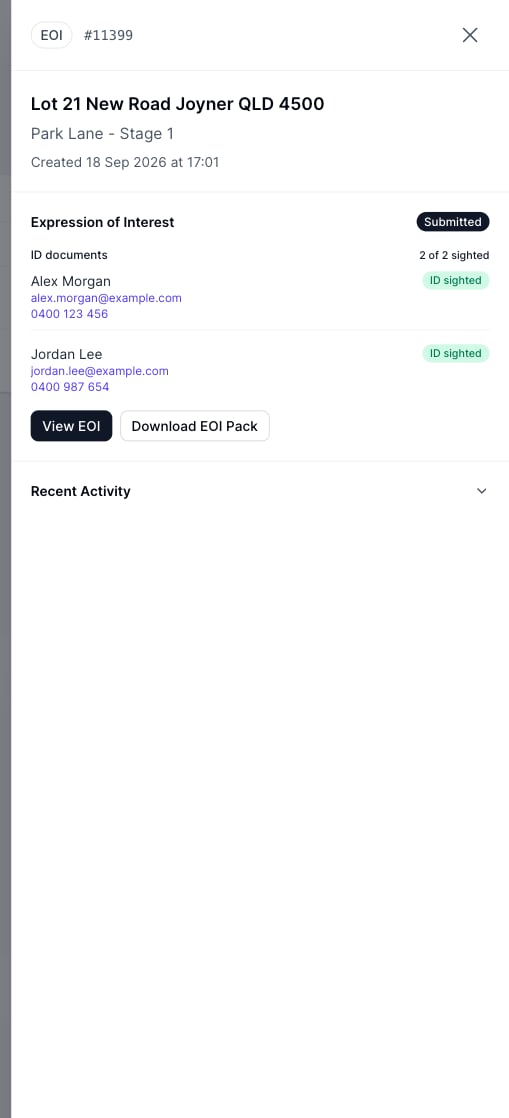
Once an EOI is **submitted** (and after it's accepted), the drawer offers **Download EOI Pack**: the Expression of Interest Pack with the EOI details and the collected IDs, ready to send on. It sits next to **View EOI**, which opens the full read-only record.
You can also resume from the property page itself: once an EOI exists for a property, its **Start EOI** button becomes **View EOI**.
## Download the Contract Pack
Once an EOI is **submitted** (and after it's accepted), the drawer offers **Download EOI Pack**: the Expression of Interest Pack with the EOI details and the collected IDs, ready to send on. It sits next to **View EOI**, which opens the full read-only record.
 The pack is available to you as the deal's selling agent, and to your account manager's team.
## Close an EOI
If the buyer falls through or you started with the wrong purchaser, choose **Abandon EOI** in the drawer (or **Abandon & start a new EOI** on the property page). You'll be asked to confirm:
The pack is available to you as the deal's selling agent, and to your account manager's team.
## Close an EOI
If the buyer falls through or you started with the wrong purchaser, choose **Abandon EOI** in the drawer (or **Abandon & start a new EOI** on the property page). You'll be asked to confirm:
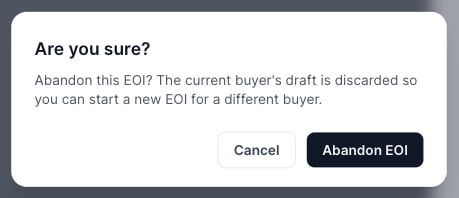 Abandoning cancels the EOI so you can start a fresh one for a different buyer on the same property, and the old buyer's details won't resurface in the new form. A closed EOI stays findable under the **Cancelled** filter, and the property becomes available to start again.
This documentation is built and hosted on [Mintlify](https://mintlify.com), a developer documentation platform.
Abandoning cancels the EOI so you can start a fresh one for a different buyer on the same property, and the old buyer's details won't resurface in the new form. A closed EOI stays findable under the **Cancelled** filter, and the property becomes available to start again.
This documentation is built and hosted on [Mintlify](https://mintlify.com), a developer documentation platform.