> ## Documentation Index
> Fetch the complete documentation index at: https://help.kenekt.app/llms.txt
> Use this file to discover all available pages before exploring further.
# Enquiries
> Enquire on a package or send a sourcing brief, and tell the team where your buyer is at so the right enquiries get priority.
There are two ways to ask for help from the portal. **Enquire** on a package when you have a specific property in mind. Send a **General Enquiry** when you want the team to source packages for a buyer.
Both forms ask the same short set of questions about your buyer. Answering them takes a few taps and tells the team which enquiries to work on first.
## Enquiring on a package
1. Browse to a property on the portal.
2. Click **Enquire** in the package's row, at the bottom of the property drawer, or on the detail page.
3. Answer the questions and click **Send enquiry**.
If you opened the property from a shared link and are not signed in, the form also asks for your name, phone, and email.
On the **Kenekt Marketplace** the enquiry takes two short steps: first what you need, then a little about the buyer. Both steps use the [buyer questions](#the-buyer-questions) below. Once you send it, Kenekt Customer Success picks up the enquiry and comes back to you with everything held on the property.
On a **supplier agency portal** the enquiry is one short screen:
* **What would you like to know?**
* **Buyer's approved purchase amount**
* **Is the buyer's finance ready?** Yes, No, or Maybe
If your Kenekt Marketplace account is awaiting approval, or is paused, **Enquire** works the same way. The enquiry is sent with the property reference attached. See [Account access](/help-guide/06-agent-portal#account-access-on-the-kenekt-marketplace).
## General Enquiry (sourcing brief)
Use **General Enquiry** in the top navigation when you want the team to find packages for a buyer rather than asking about one listing.
1. Click **General Enquiry** in the navigation.
2. **Your enquiry** and **The buyer**: answer the buyer questions below. A General Enquiry also asks for the buyer's budget, under the financial status (see [Budget](#budget)).
3. **The property**: pick the property configuration, then add localities, land and build size, and land facing. Marketplace portals also ask for the target states.
4. **Final details**: optionally pick a contract type and ideal registration date (or **No preference**), add any notes, and click **Send request**.
On a supplier agency portal the **General Enquiry** link appears once your agency turns it on under Portal Details. Marketplace portals always show it.
## The buyer questions
### Your enquiry
 | Question | Options |
| - | - |
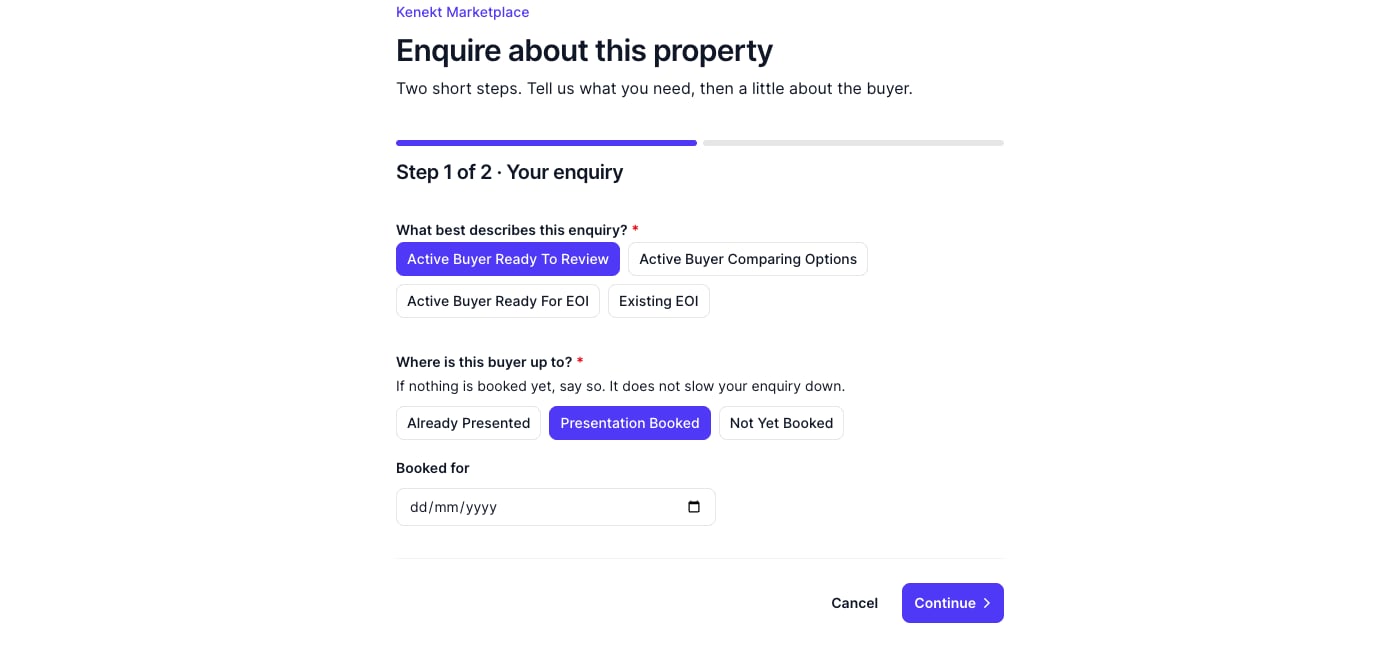
| What best describes this enquiry? | Active Buyer Ready To Review, Active Buyer Comparing Options, Active Buyer Ready For EOI, Existing EOI |
| Where is this buyer up to? | Already Presented, Presentation Booked, Not Yet Booked |
If you choose **Already Presented** or **Presentation Booked**, you can add the date. If nothing is booked yet, say so: it does not slow your enquiry down.
### The buyer
| Question | Options |
| - | - |
| What is the buyer's financial status? | Pre Approval, Eligibility Letter, Broker Engaged, Cash Buyer, Finance Not Yet Assessed, Unknown |
| When will the buyer decide? | Ready To Buy, Within 3 Days, Beyond 3 Days, Unknown |
| How likely is this buyer to proceed? | Very Likely, Likely, Unsure |
| How is this property positioned with the buyer? (property enquiries only) | Preferred Option, One Of Several Options, Backup Option |
| Ownership type (optional) | Investor, Owner Occupier, First Home Buyer |
A General Enquiry has no property yet, so it skips the positioning question.
Lot availability changes daily in most corridors, and a builder's confirmation is only accurate for a few days. That is why the form asks when the buyer will decide: the team confirms availability at the point your buyer is ready to act.
Some finance answers ask a follow-up. These details are optional, but they are what lets the team hold a lot with the builder, so copy them straight off your file.
| Financial status | Follow-up |
| - | - |
| Pre Approval | Lender or broker, approval amount, expiry date |
| Eligibility Letter | Who issued the letter |
| Broker Engaged | Broker name and firm |
| Cash Buyer | Whether you have sighted evidence of funds |
| Question | Options |
| - | - |
| What best describes this enquiry? | Active Buyer Ready To Review, Active Buyer Comparing Options, Active Buyer Ready For EOI, Existing EOI |
| Where is this buyer up to? | Already Presented, Presentation Booked, Not Yet Booked |
If you choose **Already Presented** or **Presentation Booked**, you can add the date. If nothing is booked yet, say so: it does not slow your enquiry down.
### The buyer
| Question | Options |
| - | - |
| What is the buyer's financial status? | Pre Approval, Eligibility Letter, Broker Engaged, Cash Buyer, Finance Not Yet Assessed, Unknown |
| When will the buyer decide? | Ready To Buy, Within 3 Days, Beyond 3 Days, Unknown |
| How likely is this buyer to proceed? | Very Likely, Likely, Unsure |
| How is this property positioned with the buyer? (property enquiries only) | Preferred Option, One Of Several Options, Backup Option |
| Ownership type (optional) | Investor, Owner Occupier, First Home Buyer |
A General Enquiry has no property yet, so it skips the positioning question.
Lot availability changes daily in most corridors, and a builder's confirmation is only accurate for a few days. That is why the form asks when the buyer will decide: the team confirms availability at the point your buyer is ready to act.
Some finance answers ask a follow-up. These details are optional, but they are what lets the team hold a lot with the builder, so copy them straight off your file.
| Financial status | Follow-up |
| - | - |
| Pre Approval | Lender or broker, approval amount, expiry date |
| Eligibility Letter | Who issued the letter |
| Broker Engaged | Broker name and firm |
| Cash Buyer | Whether you have sighted evidence of funds |
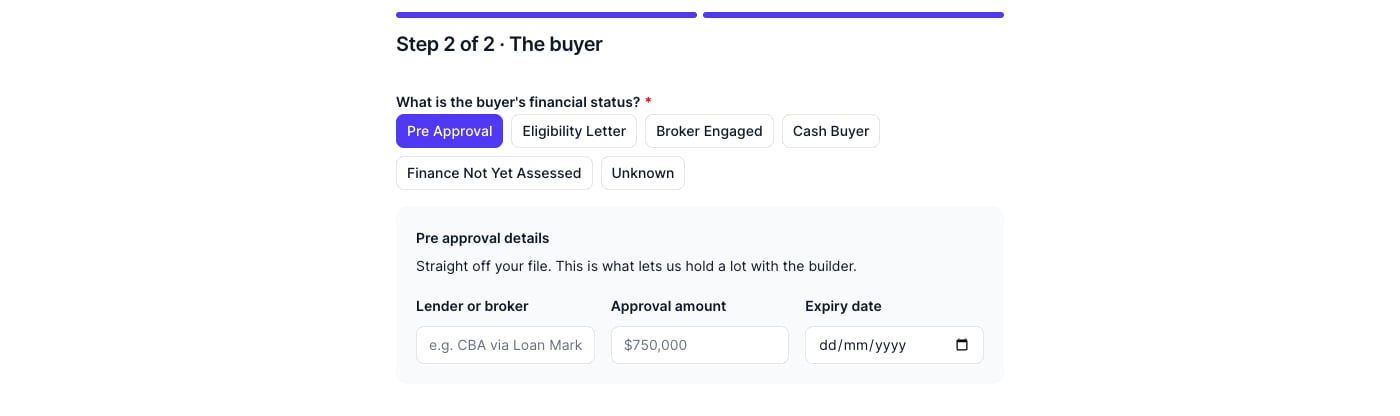 Until every required question on a step is answered, **Continue** and the send button are greyed out and a **Still needed** line lists what is left.
When you enquire about a specific property, finish with the notes: lot numbers, the finance clause you need, or what the buyer is weighing this property against. The more specific you are, the fewer times the team needs to come back to you.
### Budget
On a General Enquiry, the budget question appears in the same grey box as the finance details, for every status except **Pre Approval** (the approval amount already covers it). It is required whenever it shows.
| Financial status | Budget question |
| - | - |
| Eligibility Letter, Broker Engaged | Approved purchase amount or maximum budget |
| Cash Buyer, Finance Not Yet Assessed, Unknown | Maximum budget |
## What happens next
1. The team receives an email with your answers and notes.
2. An enquiry appears in your **My Deals**, with a badge showing the enquiry type you chose.
3. The team may contact you for more details.
4. The deal can progress to Hold, Under Offer, or Sold.
## Viewing your enquiries
Open **My Deals** and click an enquiry to see everything you submitted, including the finance details and, on a General Enquiry, the sourcing criteria.
## Tips
* Answer the buyer questions honestly. **Unknown** is better than a guess, and the team reads your answers to decide what to work on first.
* Include a realistic budget so the packages suggested actually fit.
* Check My Deals regularly for responses.
This documentation is built and hosted on [Mintlify](https://mintlify.com), a developer documentation platform.
Until every required question on a step is answered, **Continue** and the send button are greyed out and a **Still needed** line lists what is left.
When you enquire about a specific property, finish with the notes: lot numbers, the finance clause you need, or what the buyer is weighing this property against. The more specific you are, the fewer times the team needs to come back to you.
### Budget
On a General Enquiry, the budget question appears in the same grey box as the finance details, for every status except **Pre Approval** (the approval amount already covers it). It is required whenever it shows.
| Financial status | Budget question |
| - | - |
| Eligibility Letter, Broker Engaged | Approved purchase amount or maximum budget |
| Cash Buyer, Finance Not Yet Assessed, Unknown | Maximum budget |
## What happens next
1. The team receives an email with your answers and notes.
2. An enquiry appears in your **My Deals**, with a badge showing the enquiry type you chose.
3. The team may contact you for more details.
4. The deal can progress to Hold, Under Offer, or Sold.
## Viewing your enquiries
Open **My Deals** and click an enquiry to see everything you submitted, including the finance details and, on a General Enquiry, the sourcing criteria.
## Tips
* Answer the buyer questions honestly. **Unknown** is better than a guess, and the team reads your answers to decide what to work on first.
* Include a realistic budget so the packages suggested actually fit.
* Check My Deals regularly for responses.
This documentation is built and hosted on [Mintlify](https://mintlify.com), a developer documentation platform.