> ## Documentation Index
> Fetch the complete documentation index at: https://help.kenekt.app/llms.txt
> Use this file to discover all available pages before exploring further.
# Email Suppressions
> See every address Kenekt can no longer deliver to, understand why, and reactivate the ones that can be fixed.
Some addresses stop accepting your email. A message bounces, someone marks it as
junk, or a person unsubscribes. When that happens the address is **suppressed**,
and nothing you send reaches them until it is reactivated.
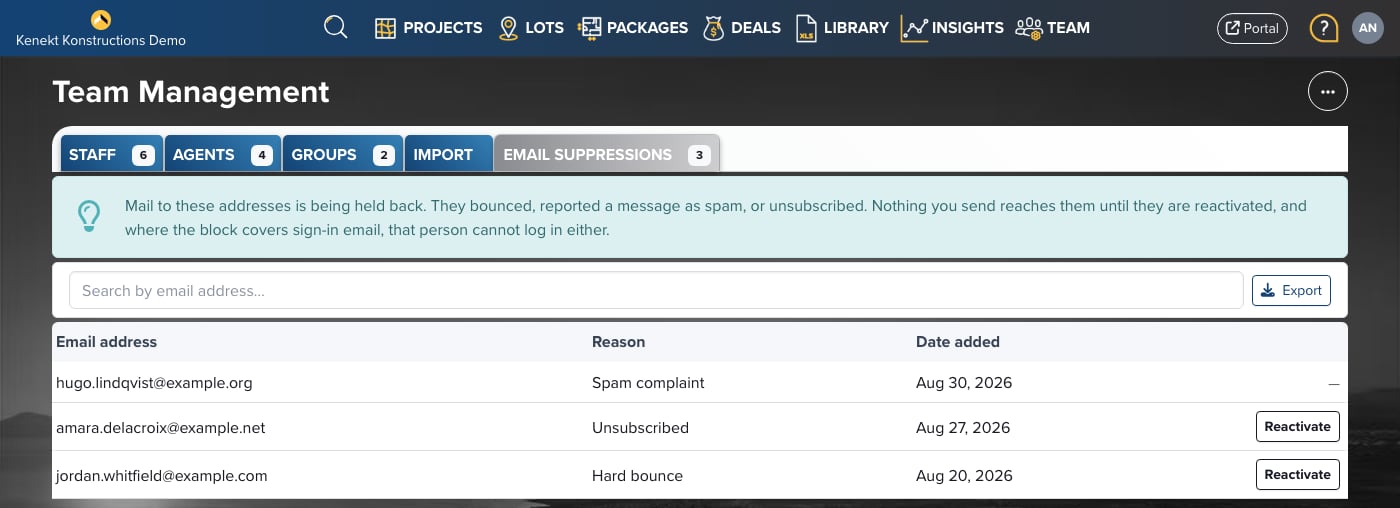
The **Email Suppressions** tab in **Team** lists every suppressed address that
belongs to someone on your team, so you can see who is missing your email and do
something about it.
Where the block covers sign-in email, that person cannot log in either. If an
agent says they never receive their sign-in link, check this list first.
## Who can see it
Administrators and staff. Agents do not see the tab and cannot reactivate an
address.
The list shows addresses belonging to users in your agency. Addresses with no
account behind them are not shown.
## Finding the list
Go to **Team** in the main navigation.
The tab sits after **Import**. The number on the tab is how many addresses
are currently blocked.
 You can also get there from a person: a suppressed agent shows an **Email
suppressed** badge in the agents list, and clicking it opens this page filtered
to their address.
## Reading the list
| Column | What it tells you |
| - | - |
| Email address | The blocked address. Click it to open that person's profile. |
| Reason | Why the address stopped working. See below. |
| Date added | When the block started. |
Use the search box to find an address. The list is sorted with the most recent
block first.
### Reasons
* **Hard bounce**: the mail server rejected the message permanently. Usually a
typo in the address, or a mailbox that has been closed.
* **Spam complaint**: the recipient told their mail provider the message was junk.
* **Unsubscribed**: the recipient used the unsubscribe link in one of your emails.
## Reactivating an address
Search for it, or click the **Email suppressed** badge on the person's row.
The button appears at the end of the row on any address that can be
reactivated.
Confirm you want to email the address again. It disappears from the list and
normal sending resumes.
**A spam complaint cannot be undone.** The recipient's mail provider owns that
decision, so those rows have no Reactivate button. Contact the person another
way and ask them to add your address to their contacts.
### Fix the cause first
Reactivating only clears the block. It does not fix what caused it.
* **Hard bounce**: correct the address on the person's profile before
reactivating, otherwise the next message bounces and the block returns.
* **Unsubscribed**: only reactivate when the person has asked you to start
emailing them again. Reactivating an unsubscribe without being asked will
earn you a spam complaint, which is permanent.
## Unsubscribes on a profile
Open a person's profile and you see their email status directly:
* An **Unsubscribed** notice with the date, and a **Reactivate** button. Sign-in
links and account email still send to someone who has unsubscribed. Only your
bulk and marketing email stops.
* A **Kenekt can't email this address** panel when the address is bounced or
marked as spam, showing the reason and the date.
## Exporting
Click **Export** above the list for a spreadsheet of the addresses currently on
screen, including your search. The file contains the address, the person's name,
the reason, and the date the block started.
Export before a large campaign to see who will not receive it, and clean up the
fixable addresses first.
## How the list stays current
The list updates as blocks happen, and is reconciled once a day. An address you
reactivate is cleared immediately, so you do not need to wait for the next
reconciliation before emailing that person.
This documentation is built and hosted on [Mintlify](https://mintlify.com), a developer documentation platform.
You can also get there from a person: a suppressed agent shows an **Email
suppressed** badge in the agents list, and clicking it opens this page filtered
to their address.
## Reading the list
| Column | What it tells you |
| - | - |
| Email address | The blocked address. Click it to open that person's profile. |
| Reason | Why the address stopped working. See below. |
| Date added | When the block started. |
Use the search box to find an address. The list is sorted with the most recent
block first.
### Reasons
* **Hard bounce**: the mail server rejected the message permanently. Usually a
typo in the address, or a mailbox that has been closed.
* **Spam complaint**: the recipient told their mail provider the message was junk.
* **Unsubscribed**: the recipient used the unsubscribe link in one of your emails.
## Reactivating an address
Search for it, or click the **Email suppressed** badge on the person's row.
The button appears at the end of the row on any address that can be
reactivated.
Confirm you want to email the address again. It disappears from the list and
normal sending resumes.
**A spam complaint cannot be undone.** The recipient's mail provider owns that
decision, so those rows have no Reactivate button. Contact the person another
way and ask them to add your address to their contacts.
### Fix the cause first
Reactivating only clears the block. It does not fix what caused it.
* **Hard bounce**: correct the address on the person's profile before
reactivating, otherwise the next message bounces and the block returns.
* **Unsubscribed**: only reactivate when the person has asked you to start
emailing them again. Reactivating an unsubscribe without being asked will
earn you a spam complaint, which is permanent.
## Unsubscribes on a profile
Open a person's profile and you see their email status directly:
* An **Unsubscribed** notice with the date, and a **Reactivate** button. Sign-in
links and account email still send to someone who has unsubscribed. Only your
bulk and marketing email stops.
* A **Kenekt can't email this address** panel when the address is bounced or
marked as spam, showing the reason and the date.
## Exporting
Click **Export** above the list for a spreadsheet of the addresses currently on
screen, including your search. The file contains the address, the person's name,
the reason, and the date the block started.
Export before a large campaign to see who will not receive it, and clean up the
fixable addresses first.
## How the list stays current
The list updates as blocks happen, and is reconciled once a day. An address you
reactivate is cleared immediately, so you do not need to wait for the next
reconciliation before emailing that person.
This documentation is built and hosted on [Mintlify](https://mintlify.com), a developer documentation platform.