> ## Documentation Index
> Fetch the complete documentation index at: https://help.kenekt.app/llms.txt
> Use this file to discover all available pages before exploring further.
# Incentives
> Show agents a price reduction, upgrade bonus or buyer rebate on a package, with the dollar amount up front.
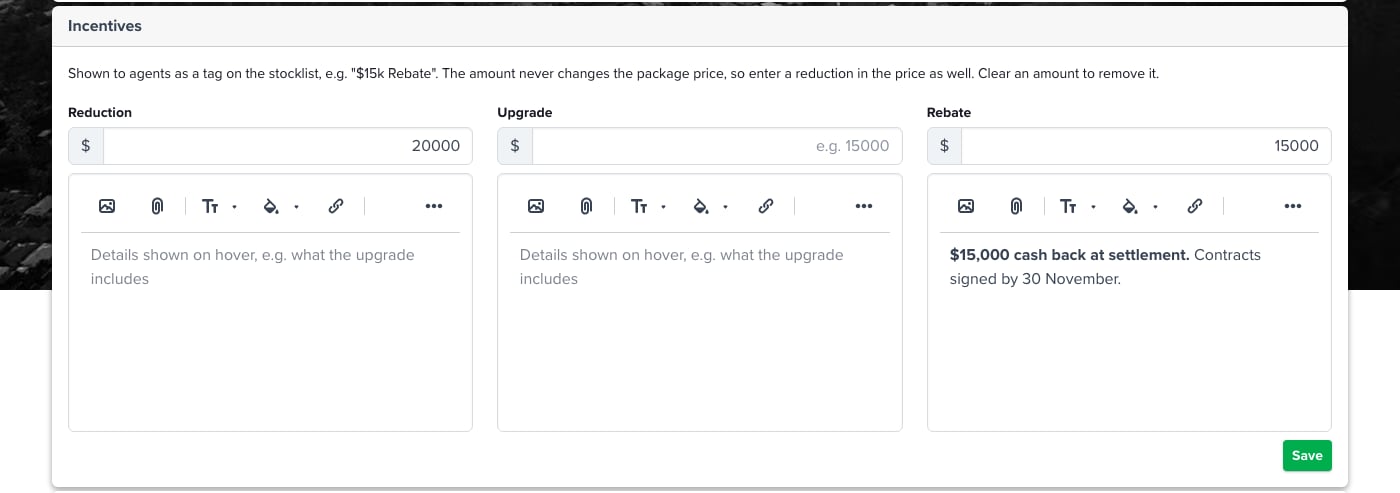
An incentive puts a dollar figure where agents can see it: a green tag on the package in the portal, such as **\$15k Rebate**. Each package can carry one of each kind:
* **Reduction**: a price cut on the package.
* **Upgrade**: an upgrade bonus, such as a free kitchen or flooring pack.
* **Rebate**: cash back to the buyer.
Incentives are for display only. They never change the package price or the commission.
A reduction does not lower the price for you. Enter the reduced price on the package as well, and use the incentive to tell agents about it.
## Adding an incentive
Go to the package and open its **Details** tab. On a single-page package form, the **Incentives** card sits after **Marketing**.
Type the dollar amount under **Reduction**, **Upgrade** or **Rebate**. Whole dollars only, for example `15000`.
The box under each amount is shown to agents when they hover over the tag. Use it for what the upgrade includes, the conditions of the rebate or a closing date. It takes formatted text and images.
Click **Save** on the card. The tag appears on the package straight away.
 To remove an incentive, clear its amount and save.
## What agents see
In the portal property table, a package with an incentive shows a tag before its location. A package with one incentive shows that incentive, such as **$20k Reduction**. A package with several shows their total, such as **$35k Incentives**, so every row stays the same height. Hovering over the tag opens a card listing each incentive and its details.
To remove an incentive, clear its amount and save.
## What agents see
In the portal property table, a package with an incentive shows a tag before its location. A package with one incentive shows that incentive, such as **$20k Reduction**. A package with several shows their total, such as **$35k Incentives**, so every row stays the same height. Hovering over the tag opens a card listing each incentive and its details.
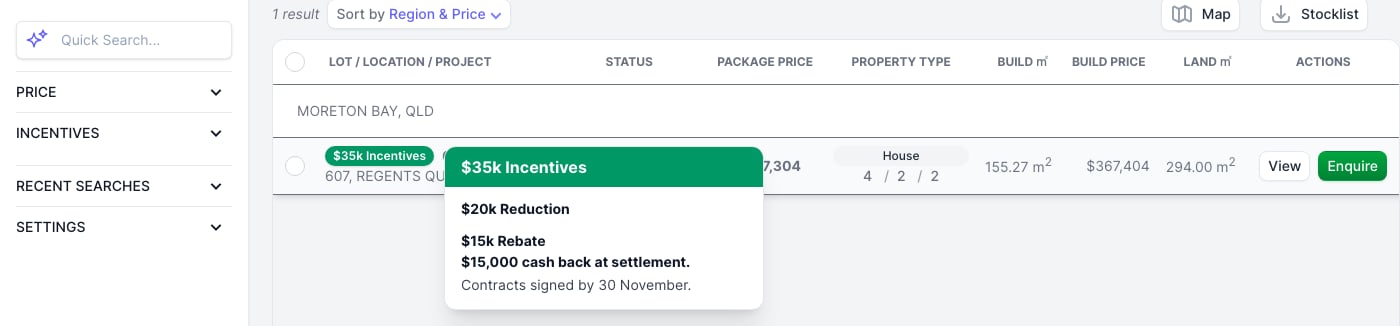 Property cards, the grid view, the property drawer and the full property page show a separate tag for each incentive. Public stocklists show them too.
Agents can also narrow their search to packages with an incentive using the **Incentives** filter. See [Searching for Packages](/help-guide/06-agent-portal/04-searching-for-packages).
This documentation is built and hosted on [Mintlify](https://mintlify.com), a developer documentation platform.
Property cards, the grid view, the property drawer and the full property page show a separate tag for each incentive. Public stocklists show them too.
Agents can also narrow their search to packages with an incentive using the **Incentives** filter. See [Searching for Packages](/help-guide/06-agent-portal/04-searching-for-packages).
This documentation is built and hosted on [Mintlify](https://mintlify.com), a developer documentation platform.